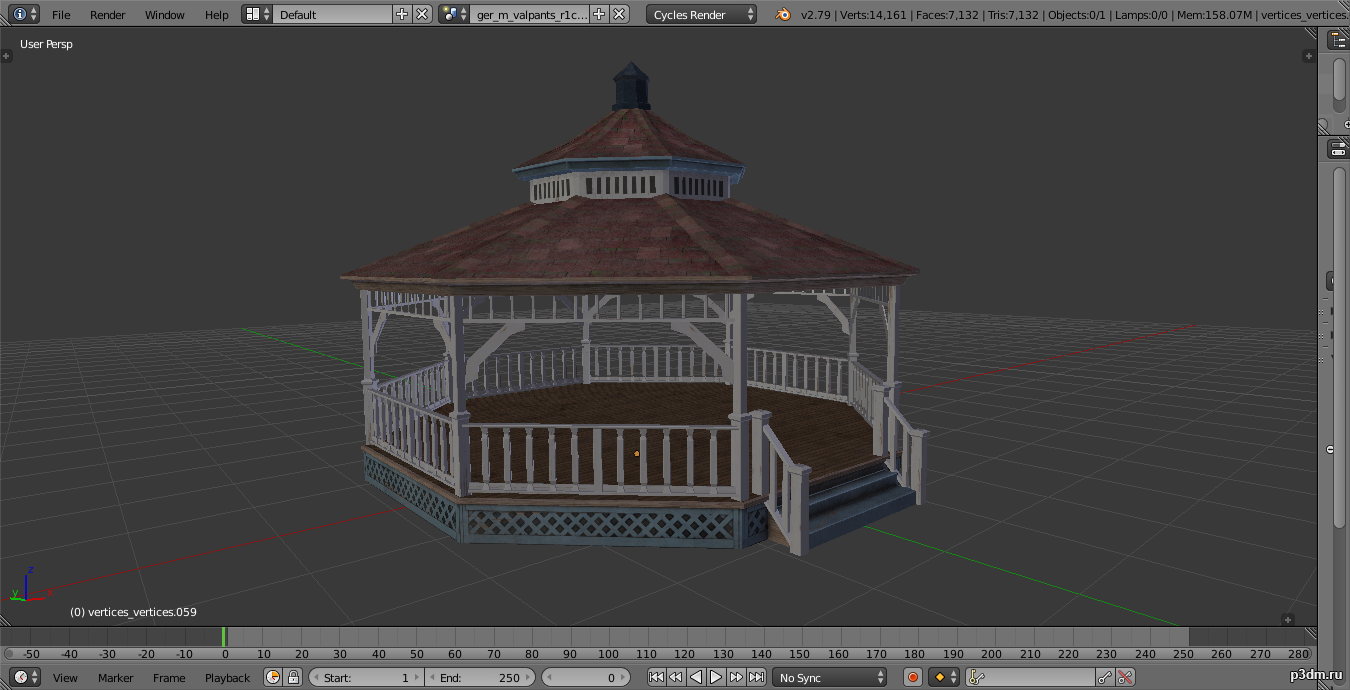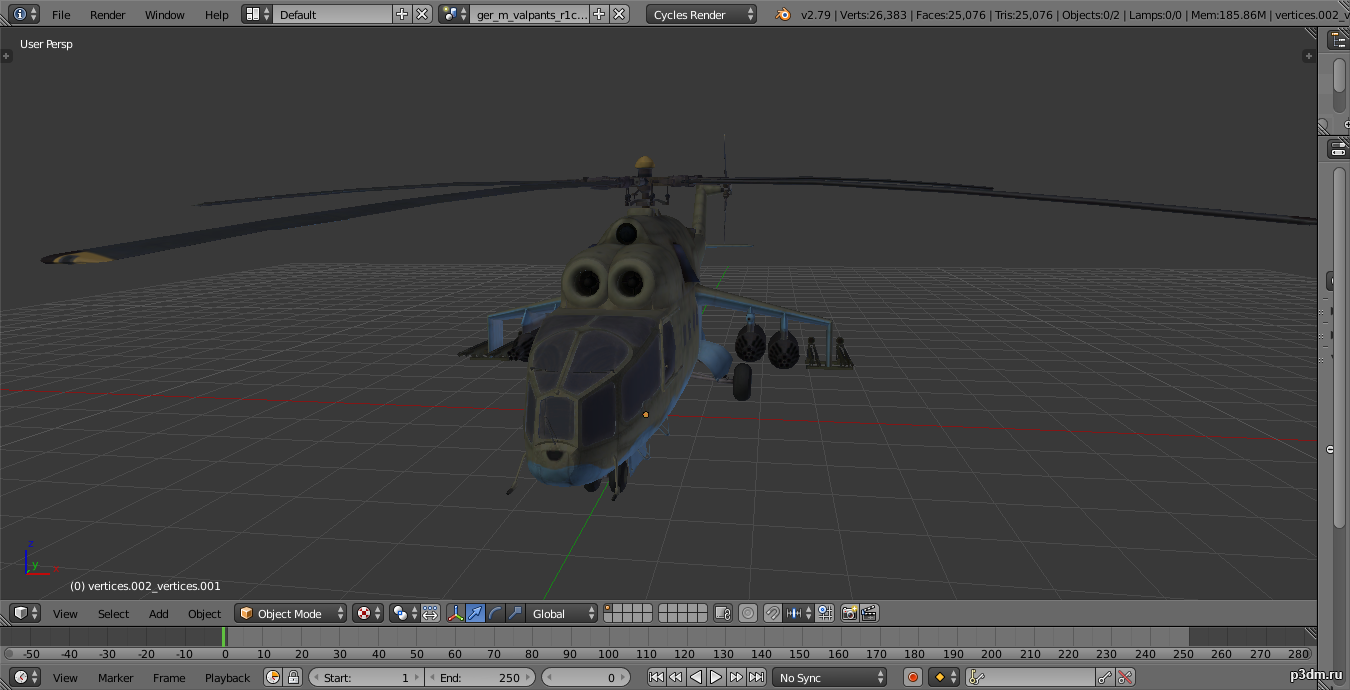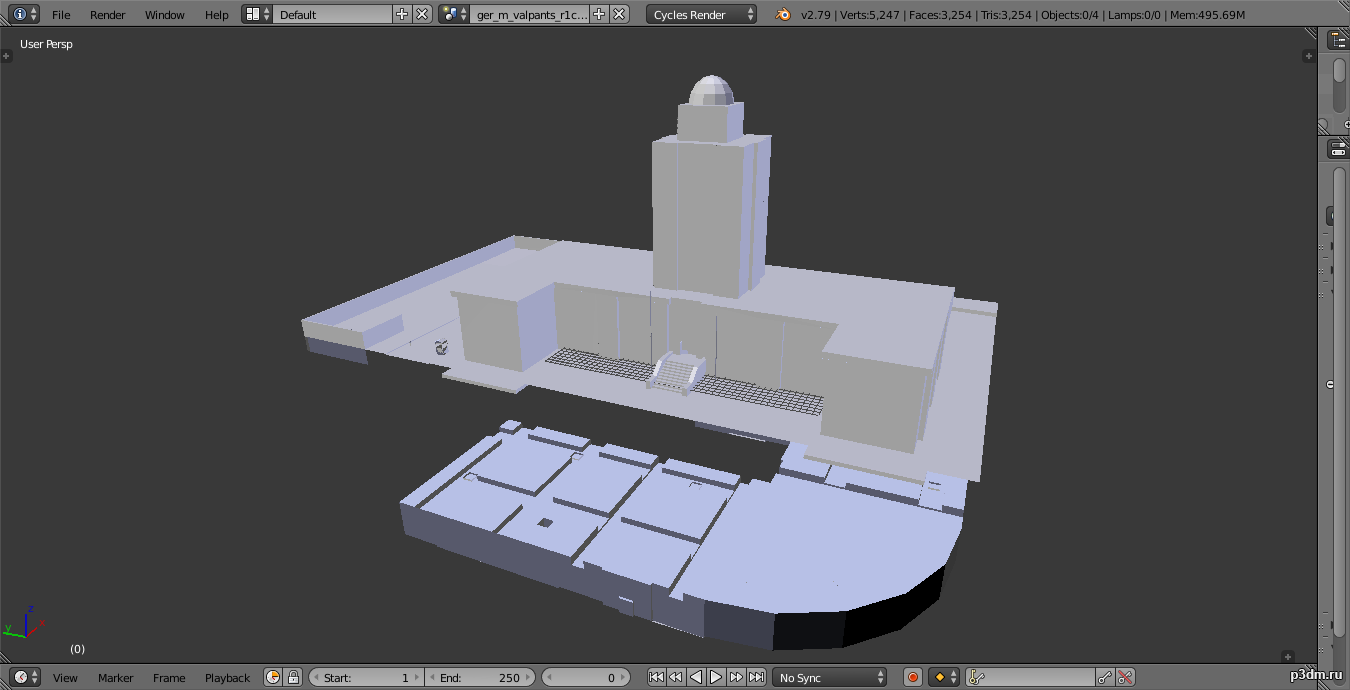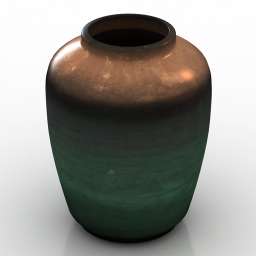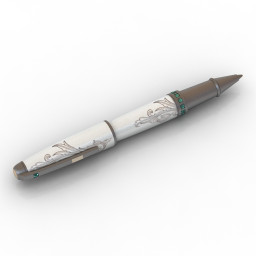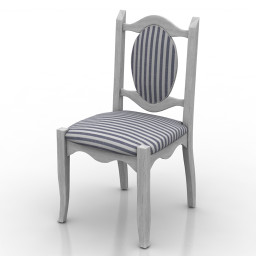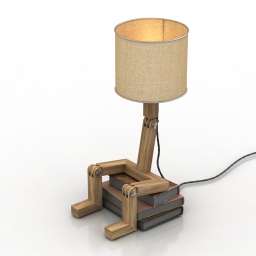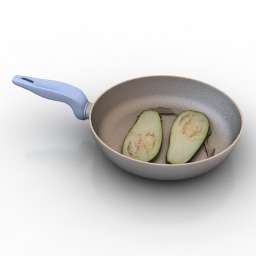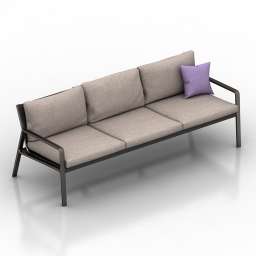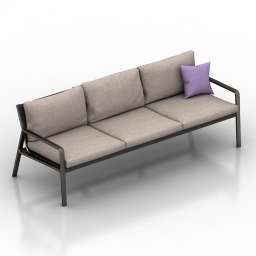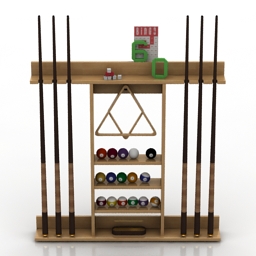
Additional Info: Rack Cue Stick Storage Rack Pottery Barn N150521 – 3D model (*.gsm+*.obj+*.3ds) for interior 3d visualization.
Blog
-
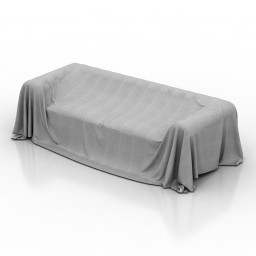
Sofa 3D Model
Additional Info: Sofa cloth 2ds – 3D model (*.gsm+*.obj+*.3ds) for interior 3d visualization.
-
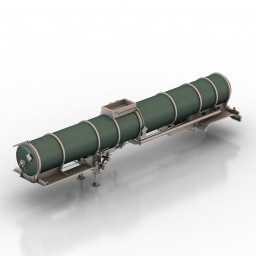
Container 3D Model
Additional Info: Container tanker N140722 – 3D model (*.gsm+*.obj+*.3ds) for exterior 3d visualization.
-
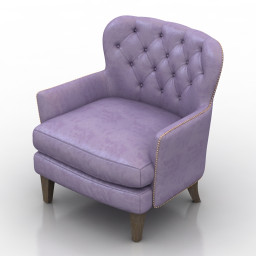
Armchair 3D Model
Additional Info: Armchair Cheshire Tufted Club chair N180822 2ds – 3D model (*.gsm+*.obj+*.3ds) for interior 3d visualization.
-
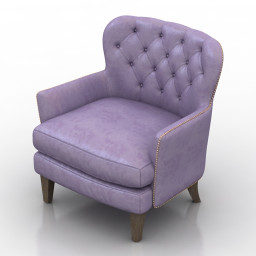
Armchair 3D Model
Additional Info: Armchair Cheshire Tufted Club chair N180822 2ds – 3D model (*.gsm+*.obj+*.3ds) for interior 3d visualization.
-
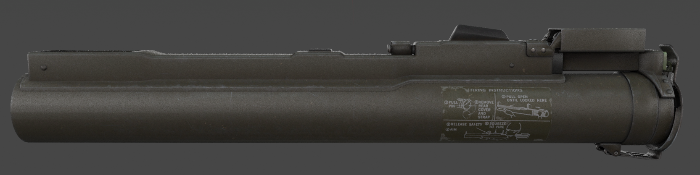
M72 LAW 3D Model
The M72 LAW (also referred to as the light anti-armor weapon or LAW) is a portable one-shot unguided anti-tank weapon developed by Paul V. Choate, Charles B. Weeks, Frank A. Spinale and was adopted by the United States.Parts are separable as seen.
-
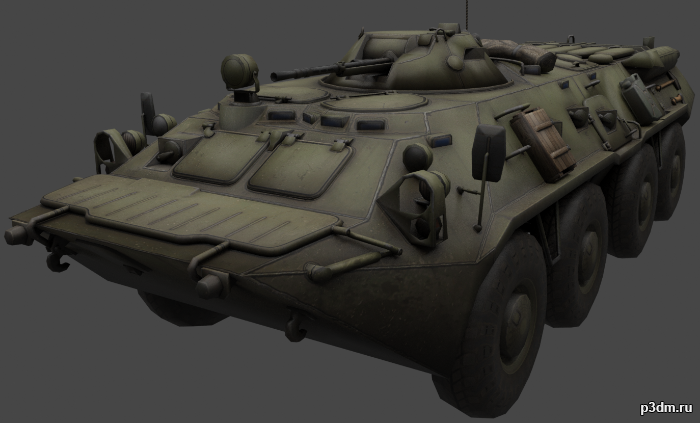
BTR-80 3D Model
The BTR-80 is a wheeled amphibious armoured personnel carrier designed in the USSR. It was adopted in 1985 and replaced the previous vehicles, the BTR-60 and BTR-70, in the Soviet Army.Parts are separable as seen.Destroyed version is also included.
-
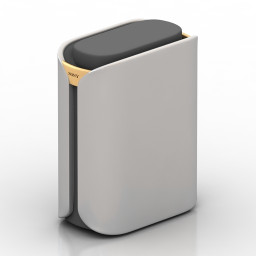
Woofer 3D Model
Additional Info: Woofer – 3D model (*.gsm+*.obj+*.3ds) for interior 3d visualization.
-
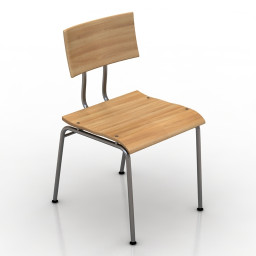
Chair 3D Model
Additional Info: Chair Scholar Dining Chair N190622 – 3D model (*.gsm+*.obj+*.3ds) for interior 3d visualization.
-
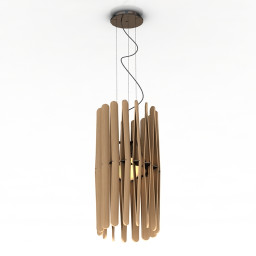
Luster 3D Model
Additional Info: Luster 2 – 3D model (*.gsm+*.obj+*.3ds) for interior 3d visualization.
-
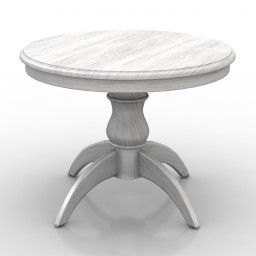
Table 3D Model
Additional Info: Table round – 3D model (*.gsm+*.obj+*.3ds) for interior 3d visualization.
-
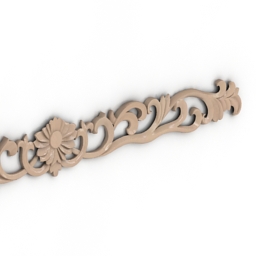
Decor 3D Model
Additional Info: Decor Ornament Molding N120122 – 3D model (*.gsm+*.obj+*.3ds) for interior 3d visualization.
-
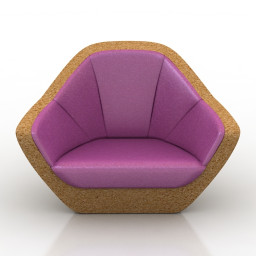
Armchair 3D Model
Additional Info: Armchair 2ds – 3D model (*.gsm+*.obj+*.3ds) for interior 3d visualization.
-
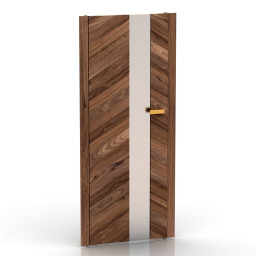
Door 3D Model
Additional Info: Door sidney 30 – 3D model (*.gsm+*.obj+*.3ds) for interior 3d visualization.
-
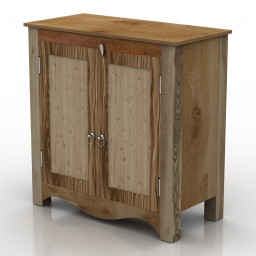
Locker 3D Model
Additional Info: Locker Massivmoebel RegSpirit Mohandi N250822 – 3D model (*.gsm+*.obj+*.3ds) for interior 3d visualization.
-
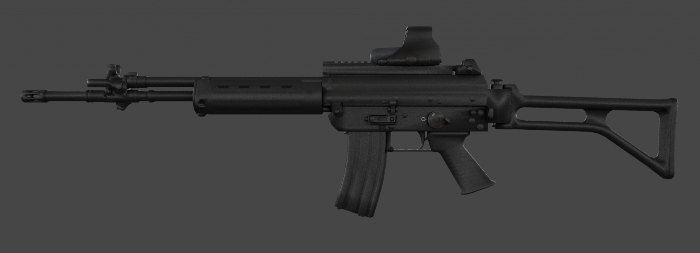
Beretta AR70/90 3D Model
The Beretta AR70/90 is an assault rifle chambered in 5.56?45 mm NATO and is the standard issue service rifle of the Italian Armed Forces.Parts are separable as seen.
-
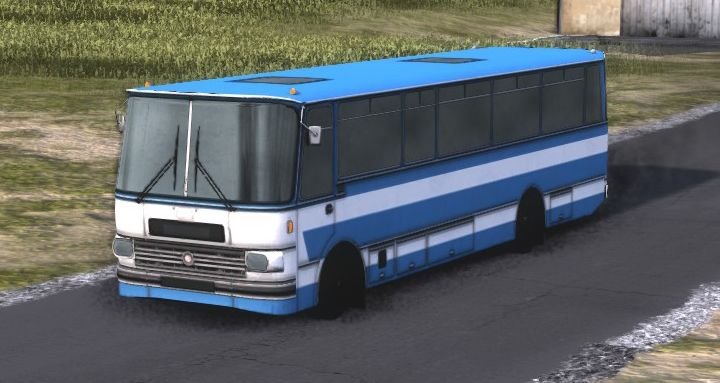
Soviet Republic Chavdav 11M3 3D Model
Привет, вот я привожу советский автобус Чавдар 11М3 из игры Рабочие и ресурсы, у него отдельные колеса, поэтому их не нужно разъединять вручную, он не такой подробный, но все же очень полезный, не загружайте его в роблокс видеоигра, потому что она уже есть
-
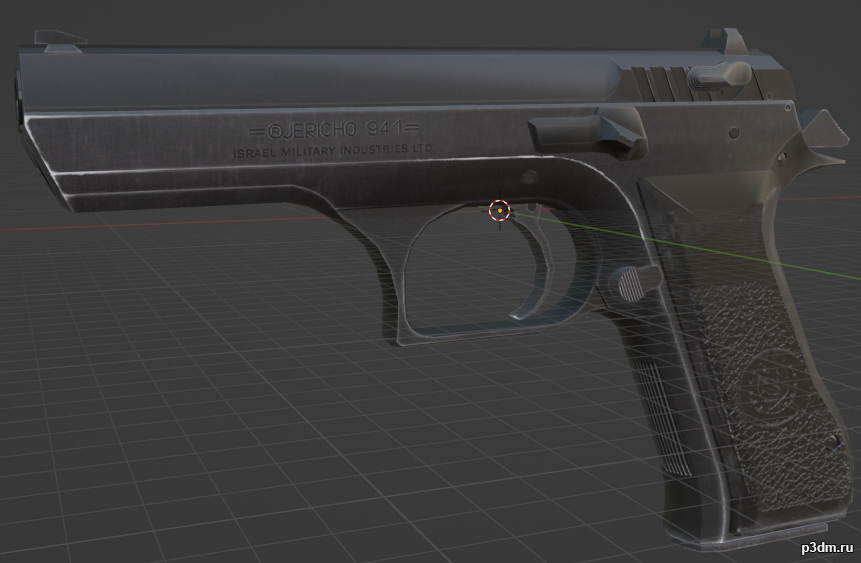
Jericho Pistol (baby eagle) 3D Model
.Blend of the model ripped from the World of guns. Some textures are broken, but thats because i was lazy with the cleanup. So if you want to Rip models from the World of Guns you just need the Ninja Ripper and Steam version of WOG. Get d3d11.dll from Ninja ripper folder/bin32/wrappers. Drop that file into source file of the WOG and you can rip files freely. If you rip from the Functionality part of the WOG all the weapon parts will be on their place and not broken
-
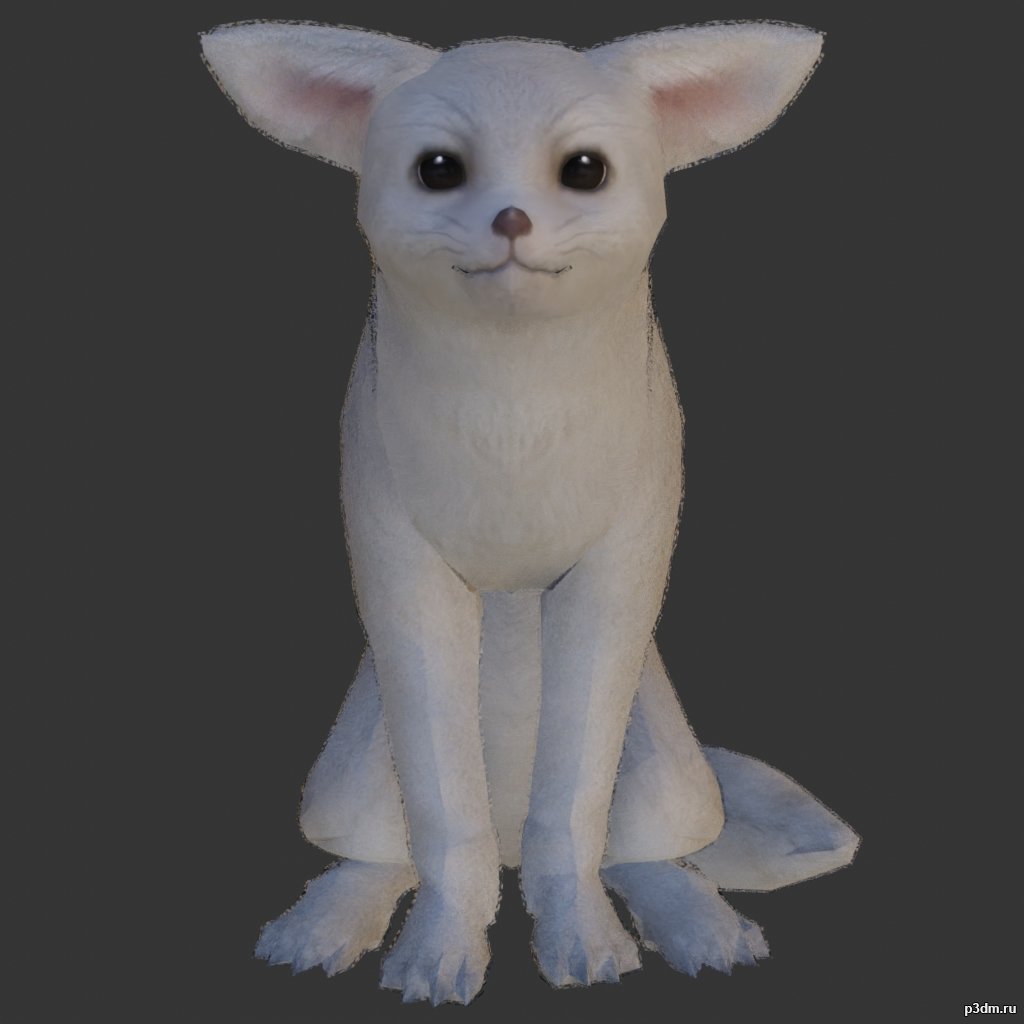
Desert Fox 3D Model
Animations here –> CLICK 5mbusing animations in Blender:1 – open model2 – import animation (in settings fbx import select Automatic Bone Orientations)3 – with the CTRL key held down Select the object you want to animate, then select the object from which you want to copy the animation, then go to Object > Link/Data Transfer > Link Animation Data4 – correct some distortions
-
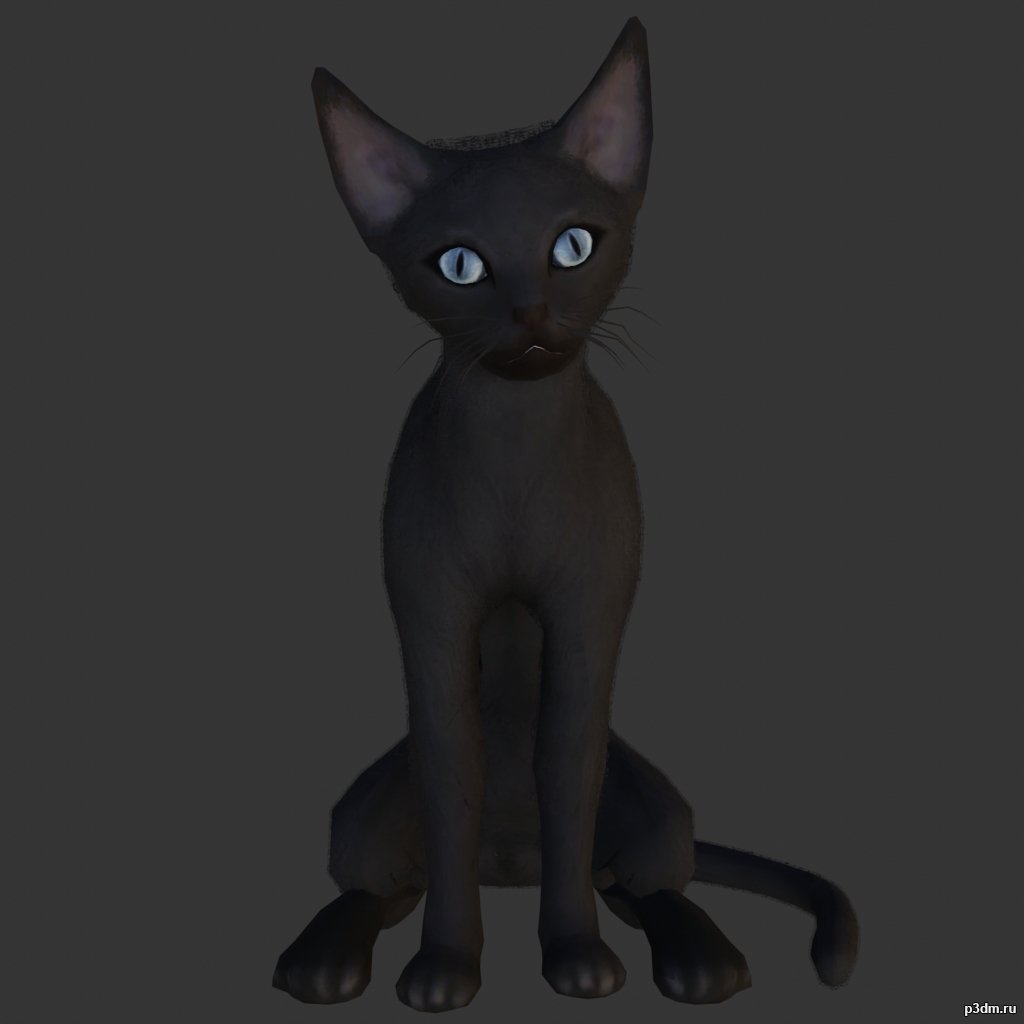
Sphynx Cats 3D Model
Animations here –> MEOW 5mbusing animations in Blender:1 – open model2 – import animation (in settings fbx import select Automatic Bone Orientations)3 – with the CTRL key held down Select the object you want to animate, then select the object from which you want to copy the animation, then go to Object > Link/Data Transfer > Link Animation Data4 – correct some distortions
-
Sconce 3D Model
Additional Info: Sconce Philips InStyle Ely N030822 – 3D model (*.gsm+*.obj+*.3ds) for interior 3d visualization.
-
Chairs 3D Model
Additional Info: Chair Tandem Bench N210722 – 3D model (*.gsm+*.obj+*.3ds) for interior 3d visualization.
-
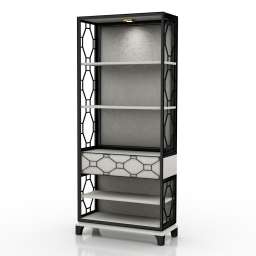
Rack 3D Model
Additional Info: Rack Stanley Furniture Fairlane-Myamerica N140622 – 3D model (*.gsm+*.obj+*.3ds) for interior 3d visualization.
-
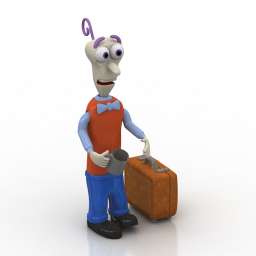
Toy 3D Model
Additional Info: Toy Tomy Inside Out N090722 – 3D model (*.gsm+*.obj+*.3ds) for interior 3d visualization.
-
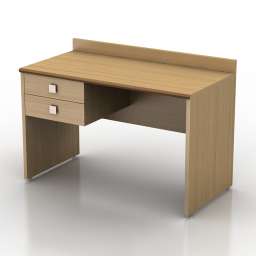
Table 3D Model
Additional Info: Table 2 – 3D model (*.gsm+*.obj+*.3ds) for interior 3d visualization.
-
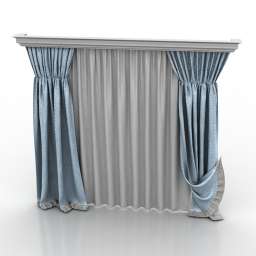
Curtain 3D Model
Additional Info: Curtain 2 N290622 – 3D model (*.gsm+*.obj+*.3ds) for interior 3d visualization.
-
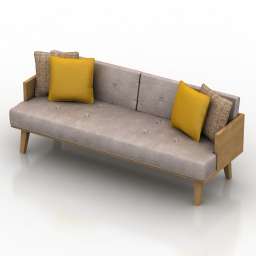
Sofa 3D Model
Additional Info: Sofa retro N270522 – 3D model (*.gsm+*.obj+*.3ds) for interior 3d visualization.
-
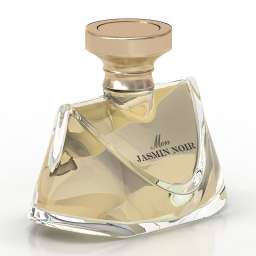
Perfume 3D Model
Additional Info: Perfume – 3D model (*.gsm+*.obj+*.3ds) for interior 3d visualization.
-
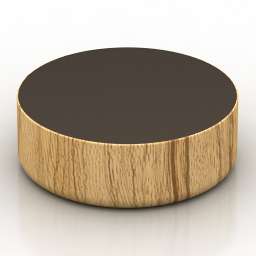
Table 3D Model
Additional Info: Table low – 3D model (*.gsm+*.obj+*.3ds) for interior 3d visualization.
-
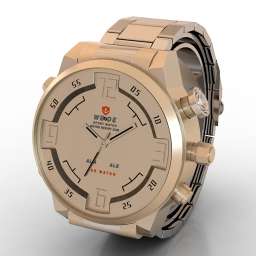
Watch 3D Model
Additional Info: Watch Weide Sport Watch WH-2309 N250522 – 3D model (*.gsm+*.obj+*.3ds) for interior 3d visualization.
-
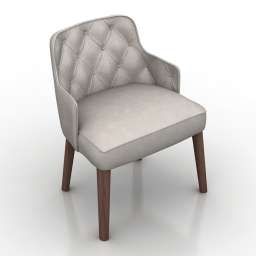
Armchair 3D Model
Additional Info: Armchair – 3D model (*.gsm+*.obj+*.3ds) for interior 3d visualization.
-
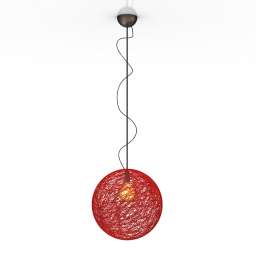
Luster 3D Model
Additional Info: Luster 2 – 3D model (*.gsm+*.obj+*.3ds) for interior 3d visualization.
-
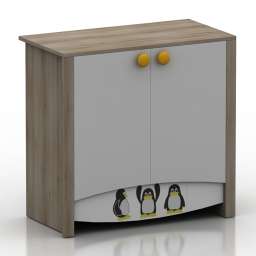
Locker 3D Model
Additional Info: Locker 2 – 3D model (*.gsm+*.obj+*.3ds) for interior 3d visualization.
-
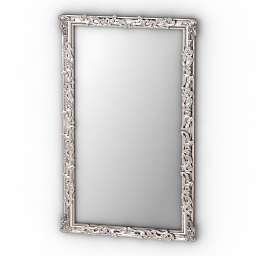
Mirror 3D Model
Additional Info: Mirror old N280622 – 3D model (*.gsm+*.obj+*.3ds) for interior 3d visualization.
-
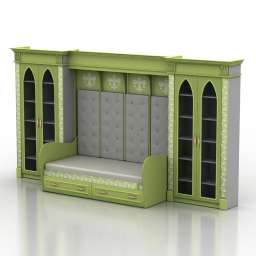
Bed 3D Model
Additional Info: Bed-Wardrobe Simfony N180722 – 3D model (*.gsm+*.obj+*.3ds) for interior 3d visualization.
-
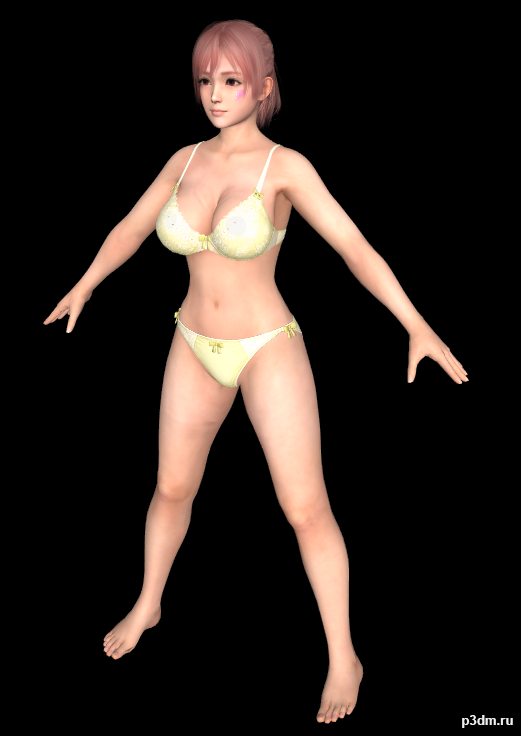
Honoka – Innocence 3D Model
All the Models here are Converted to FBX by me.Originally models converted from Dead or Alive games to XPS (Xnalara) by Shuubaru – https://www.deviantart.com/shuubaru Model belongs to Koei Tecmo & Team Ninja.Requirments to use these models:- Any 3D Studio Application like Blender, 3DS Max,…. so on.- Adobe Photoshop, Paint.net, GIMP,….and so on. (Only for Texture Editing)Folder Contents:- Model Name – Extra -Blush Tan -Blush (Blush Face Textures) -Blush Tan (Tanned Face with Blush Textures) -Normal (Normal Face Texture) -Hair – A -Hair – B -Hair – C -Hair – D -Wet Dry -Dry (Dry Body Textures) -Wet (Wet Body TExtures) – (The Whole Body Model with Outfits/Innerwear) © Koei Tecmo & Team Ninja and Shuubaru ©
-
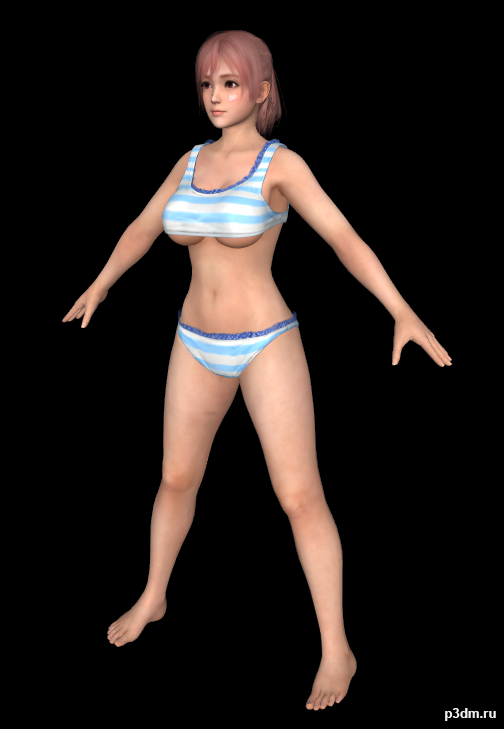
Honoka – Fachan 3D Model
All the Models here are Converted to FBX by me.Originally models converted from Dead or Alive games to XPS (Xnalara) by Shuubaru – https://www.deviantart.com/shuubaru Model belongs to Koei Tecmo & Team Ninja.Requirments to use these models:- Any 3D Studio Application like Blender, 3DS Max,…. so on.- Adobe Photoshop, Paint.net, GIMP,….and so on. (Only for Texture Editing)Folder Contents:- Model Name – Extra -Blush Tan -Blush (Blush Face Textures) -Blush Tan (Tanned Face with Blush Textures) -Normal (Normal Face Texture) -Hair – A -Hair – B -Hair – C -Hair – D -Wet Dry -Dry (Dry Body Textures) -Wet (Wet Body TExtures) – (The Whole Body Model with Outfits/Innerwear) © Koei Tecmo & Team Ninja and Shuubaru ©
-
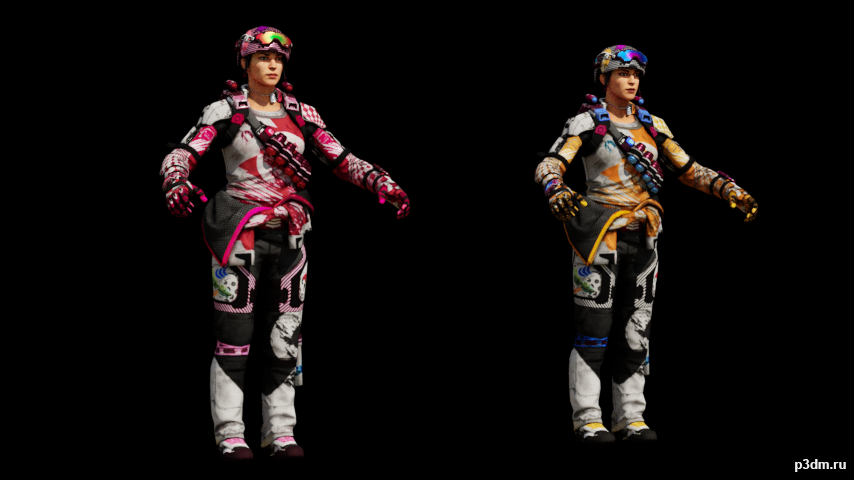
Battery Halfpipe – Original & Valentine versions 3D Model
Battery Halfpipe – Original & Valentine versions.
-
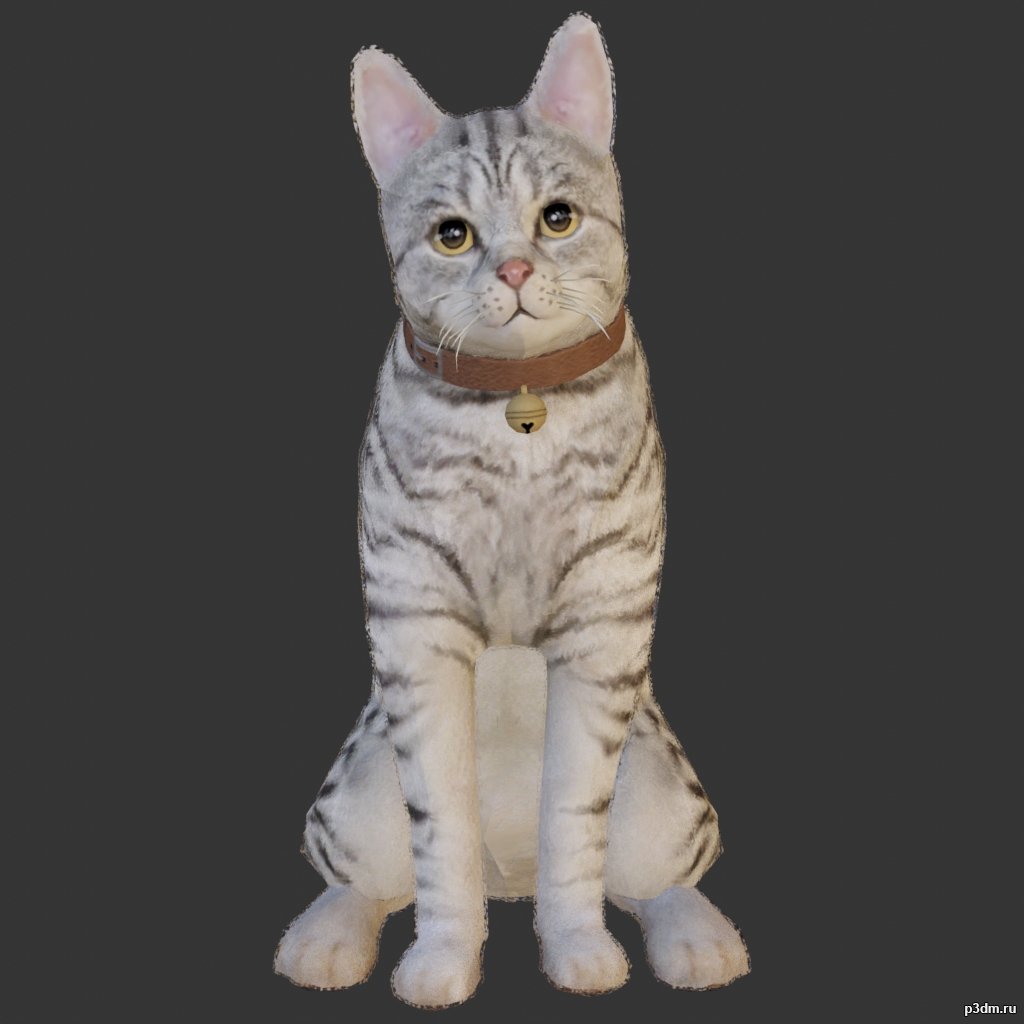
Cat 3D Model
Animations here –> MEOW 5mbusing animations in Blender:1 – open model2 – import animation (in settings fbx import select Automatic Bone Orientations)3 – with the CTRL key held down Select the object you want to animate, then select the object from which you want to copy the animation, then go to Object > Link/Data Transfer > Link Animation Data4 – correct some distortions
-
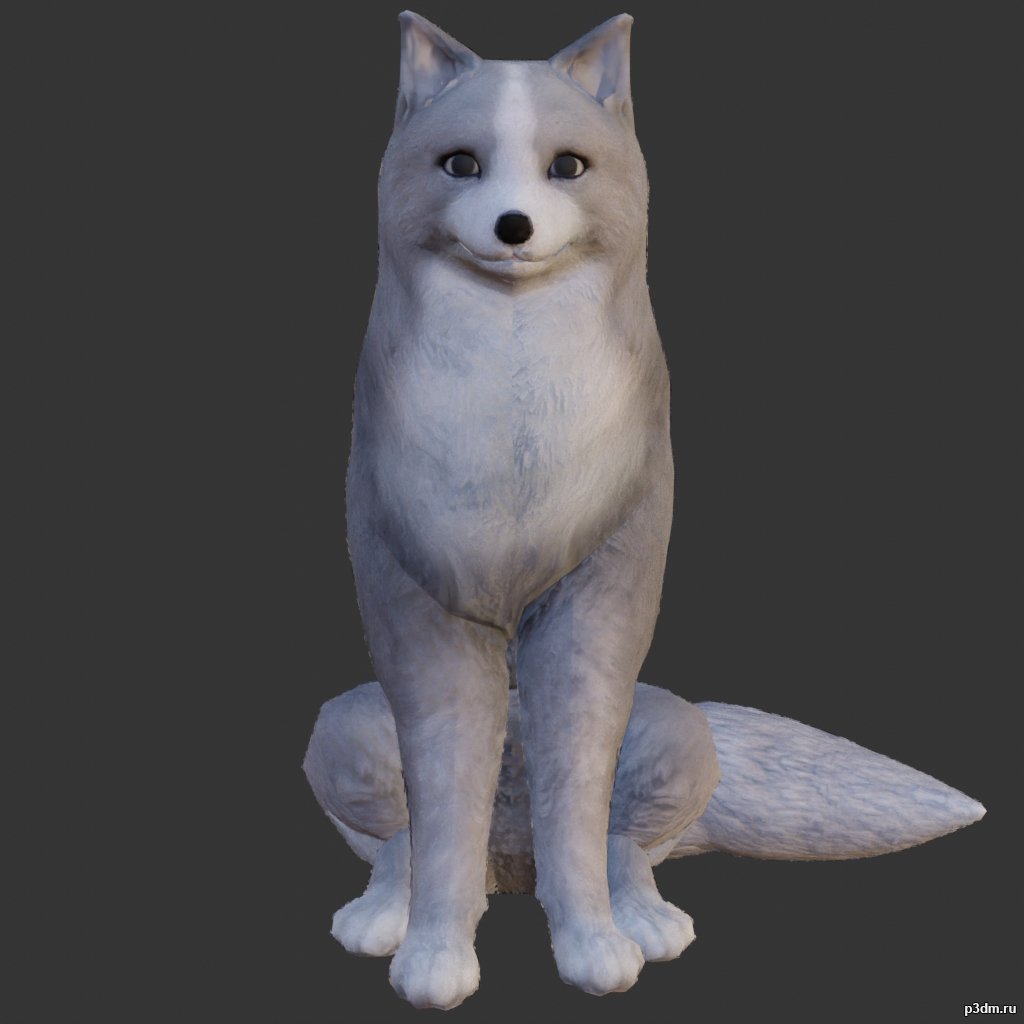
Fox 3D Model
Animations here –> CLICK 6mbusing animations in Blender:1 – open model2 – import animation (in settings fbx import select Automatic Bone Orientations)3 – with the CTRL key held down Select the object you want to animate, then select the object from which you want to copy the animation, then go to Object > Link/Data Transfer > Link Animation Data4 – correct some distortions
-
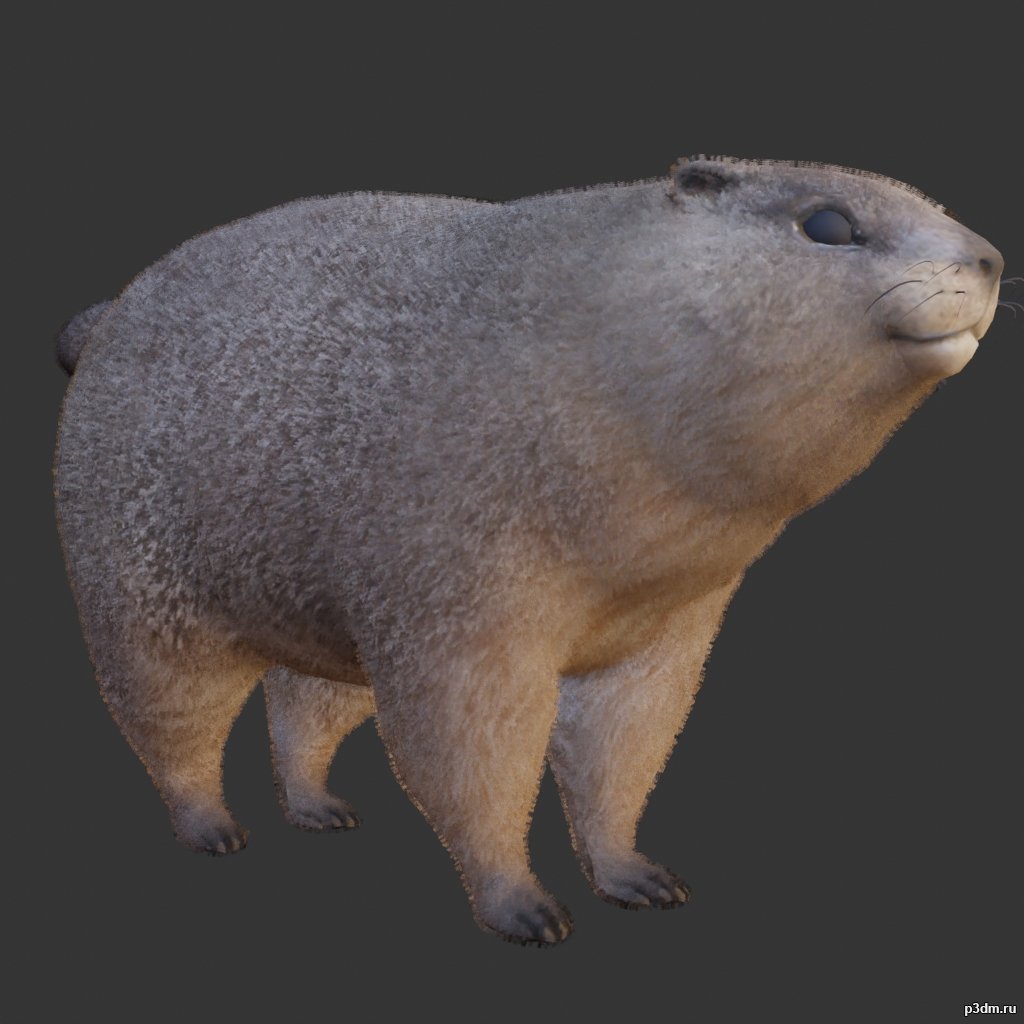
Marmot 3D Model
using animations in Blender:1 – open model2 – import animation (in settings fbx import select Automatic Bone Orientations)3 – with the CTRL key held down Select the object you want to animate, then select the object from which you want to copy the animation, then go to Object > Link/Data Transfer > Link Animation Data
-
Torchere 3D Model
Additional Info: Torchere – 3D model (*.gsm+*.obj+*.3ds) for interior 3d visualization.
-
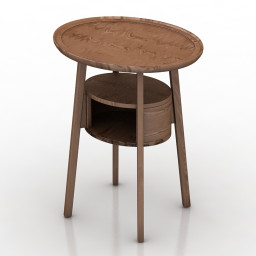
Table 3D Model
Additional Info: Table Ligne Roset EPISODE N230622 – 3D model (*.gsm+*.obj+*.3ds) for interior 3d visualization.
-
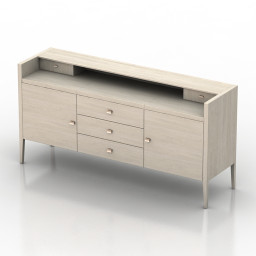
Locker 3D Model
Additional Info: Locker Mediolan SELVA commode WALDORF N160722 – 3D model (*.gsm+*.obj+*.3ds) for interior 3d visualization.
-
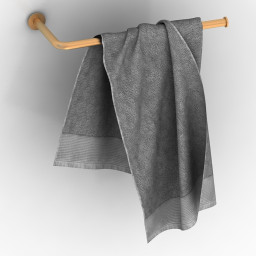
Towel 3D Model
Additional Info: Towel 4 – 3D model (*.gsm+*.obj+*.3ds) for interior 3d visualization.
-
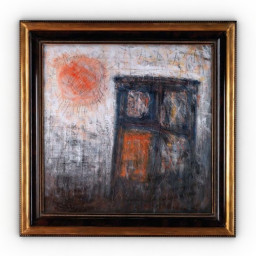
Picture 3D Model
Additional Info: Picture 171-2 – 3D model (*.gsm+*.obj+*.3ds) for interior 3d visualization.
-
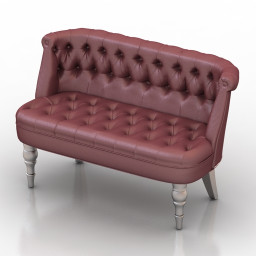
Sofa 3D Model
Additional Info: Sofa Moka N170722 2ds – 3D model (*.gsm+*.obj+*.3ds) for interior 3d visualization.
-
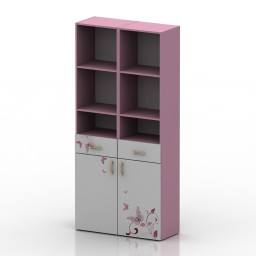
Locker 3D Model
Additional Info: Locker 5 – 3D model (*.gsm+*.obj+*.3ds) for interior 3d visualization.
-
Locker 3D Model
Additional Info: Locker 5 – 3D model (*.gsm+*.obj+*.3ds) for interior 3d visualization.
-
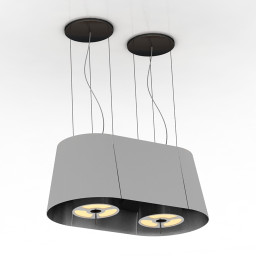
Luster 3D Model
Additional Info: Luster 2 – 3D model (*.gsm+*.obj+*.3ds) for interior 3d visualization.
-
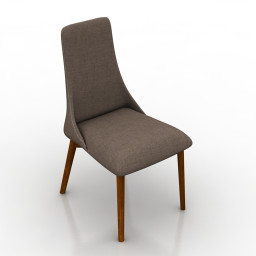
Chair 3D Model
Additional Info: Chair Calligaris ETOILE N140822 2ds – 3D model (*.gsm+*.obj+*.3ds) for interior 3d visualization.
-
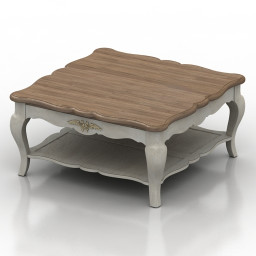
Table 3D Model
Additional Info: Table COUNTRY CORNER HQQ1 N260122 – 3D model (*.gsm+*.obj+*.3ds) for interior 3d visualization.
-
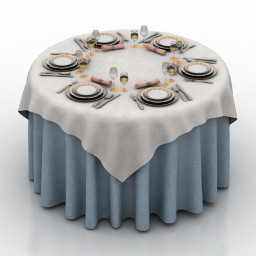
Tableware 3D Model
Additional Info: Tableware N110722 – 3D model (*.gsm+*.obj+*.3ds) for interior 3d visualization.
-
Tableware 3D Model
Additional Info: Tableware N110722 – 3D model (*.gsm+*.obj+*.3ds) for interior 3d visualization.
-
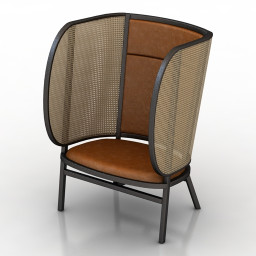
Armchair 3D Model
Additional Info: Armchair Thonet Hideout N070422 – 3D model (*.gsm+*.obj+*.3ds) for interior 3d visualization.
-
Armchair 3D Model
Additional Info: Armchair Thonet Hideout N070422 – 3D model (*.gsm+*.obj+*.3ds) for interior 3d visualization.
-
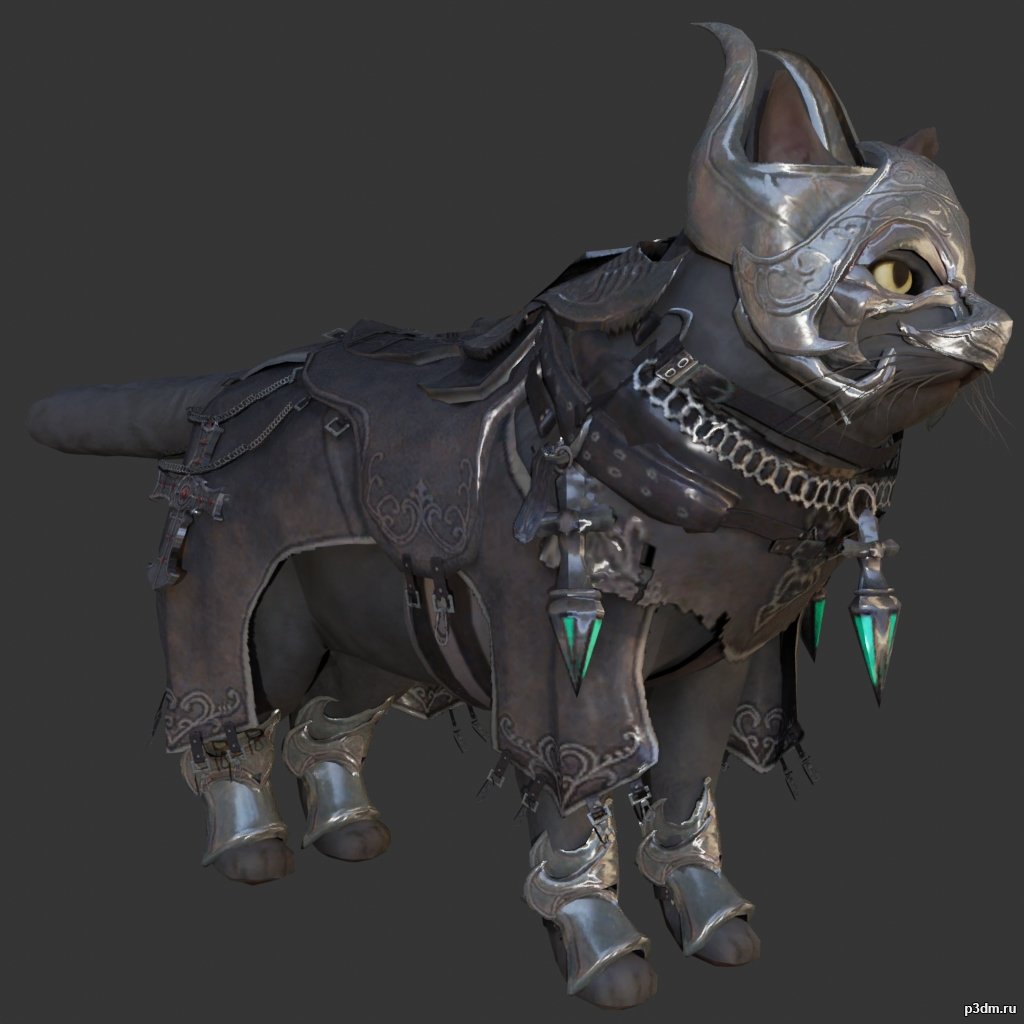
Guardian Cat 3D Model
Animations here –> MEOW 5mbusing animations in Blender:1 – open model2 – import animation (in settings fbx import select Automatic Bone Orientations)3 – with the CTRL key held down Select the object you want to animate, then select the object from which you want to copy the animation, then go to Object > Link/Data Transfer > Link Animation Data4 – correct some distortions
-
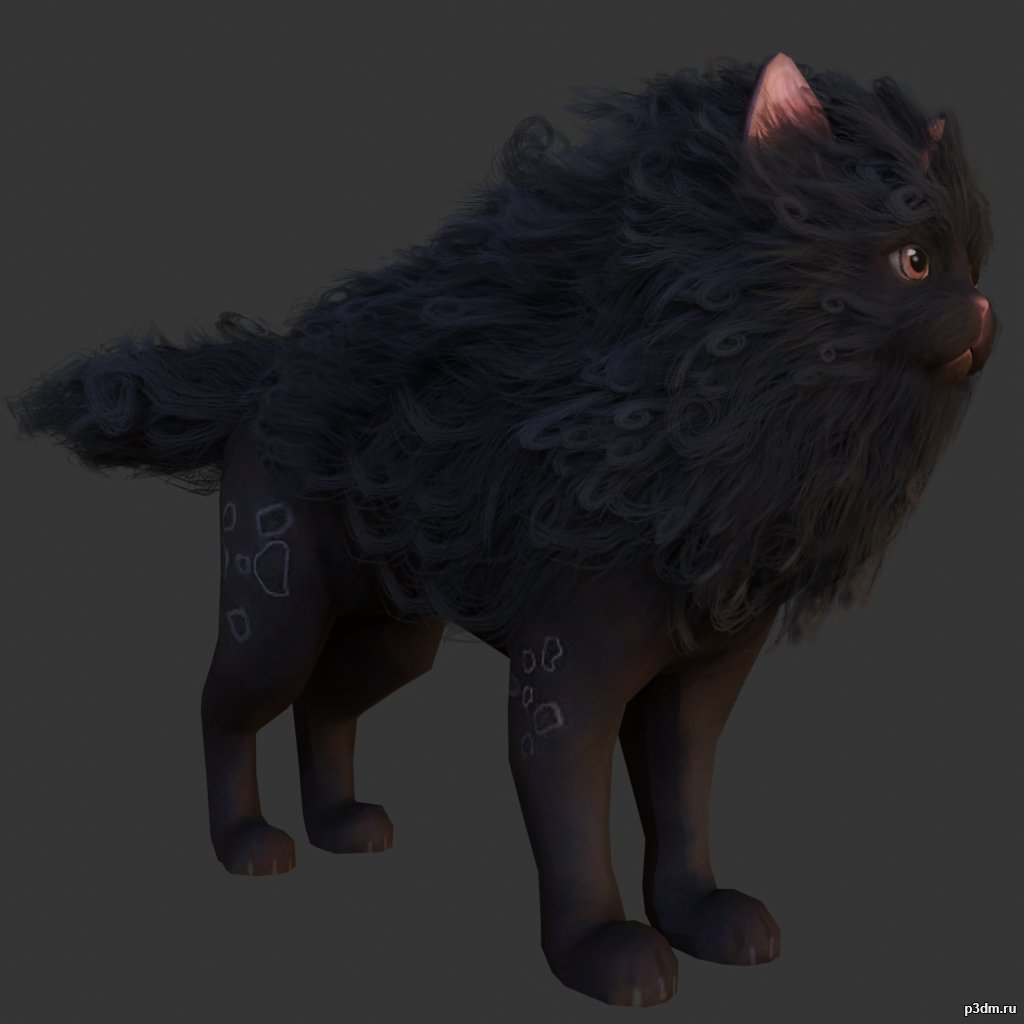
Haetae 3D Model
Animations here –> MEOW 5mbusing animations in Blender:1 – open model2 – import animation (in settings fbx import select Automatic Bone Orientations)3 – with the CTRL key held down Select the object you want to animate, then select the object from which you want to copy the animation, then go to Object > Link/Data Transfer > Link Animation Data4 – correct some distortions
-
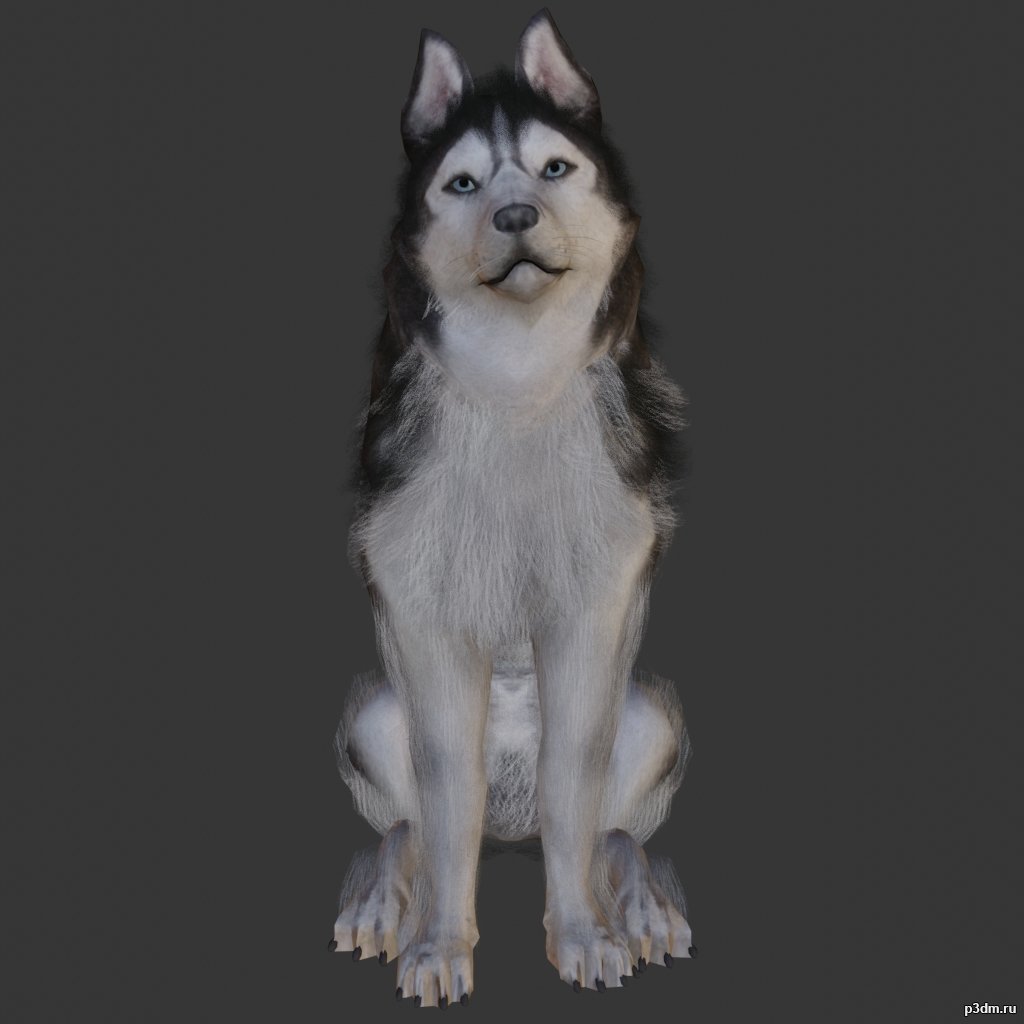
Husky 3D Model
Animations here –> WOOF 6mbusing animations in Blender:1 – open model2 – import animation (in settings fbx import select Automatic Bone Orientations)3 – with the CTRL key held down Select the object you want to animate, then select the object from which you want to copy the animation, then go to Object > Link/Data Transfer > Link Animation Data4 – correct some distortions
-
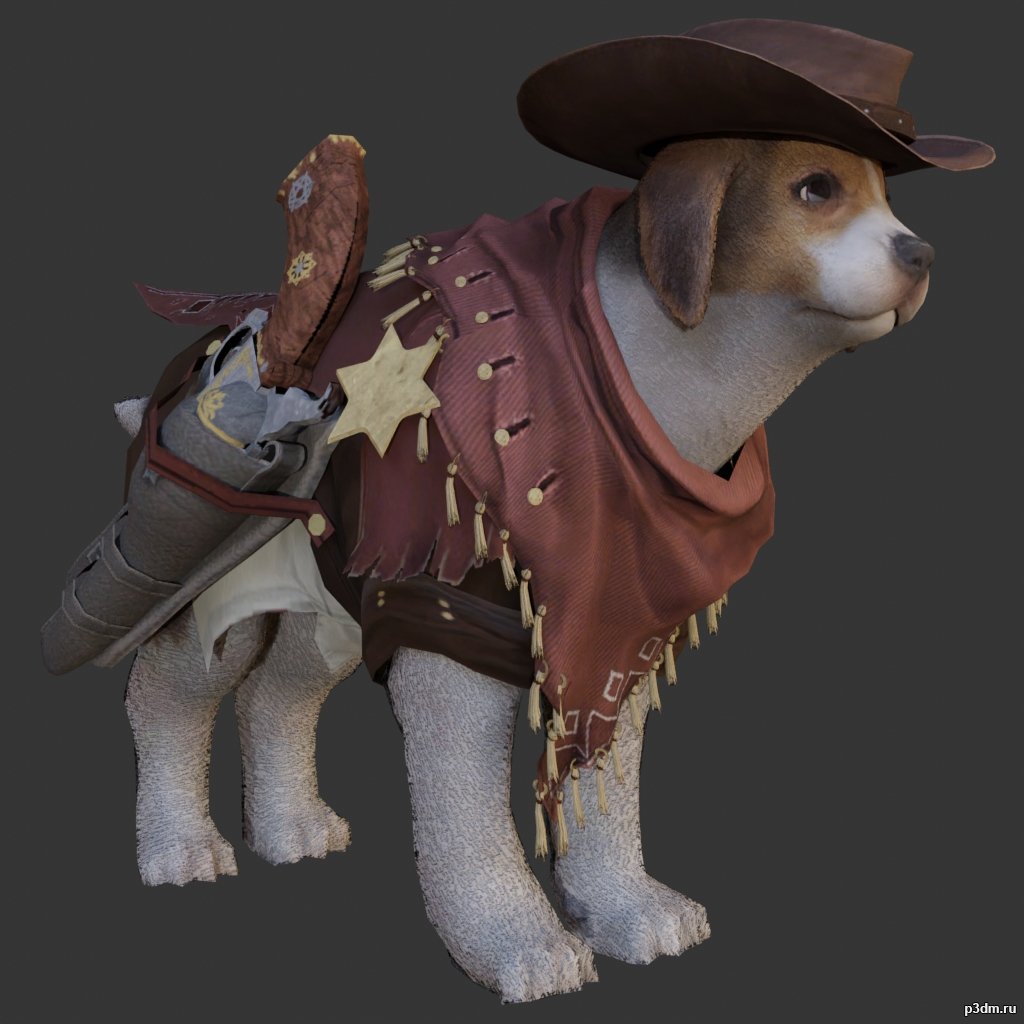
Beagle 3D Model
Animations here –> WOOF 6mbusing animations in Blender:1 – open model2 – import animation (in settings fbx import select Automatic Bone Orientations)3 – with the CTRL key held down Select the object you want to animate, then select the object from which you want to copy the animation, then go to Object > Link/Data Transfer > Link Animation Data4 – correct some distortions
-
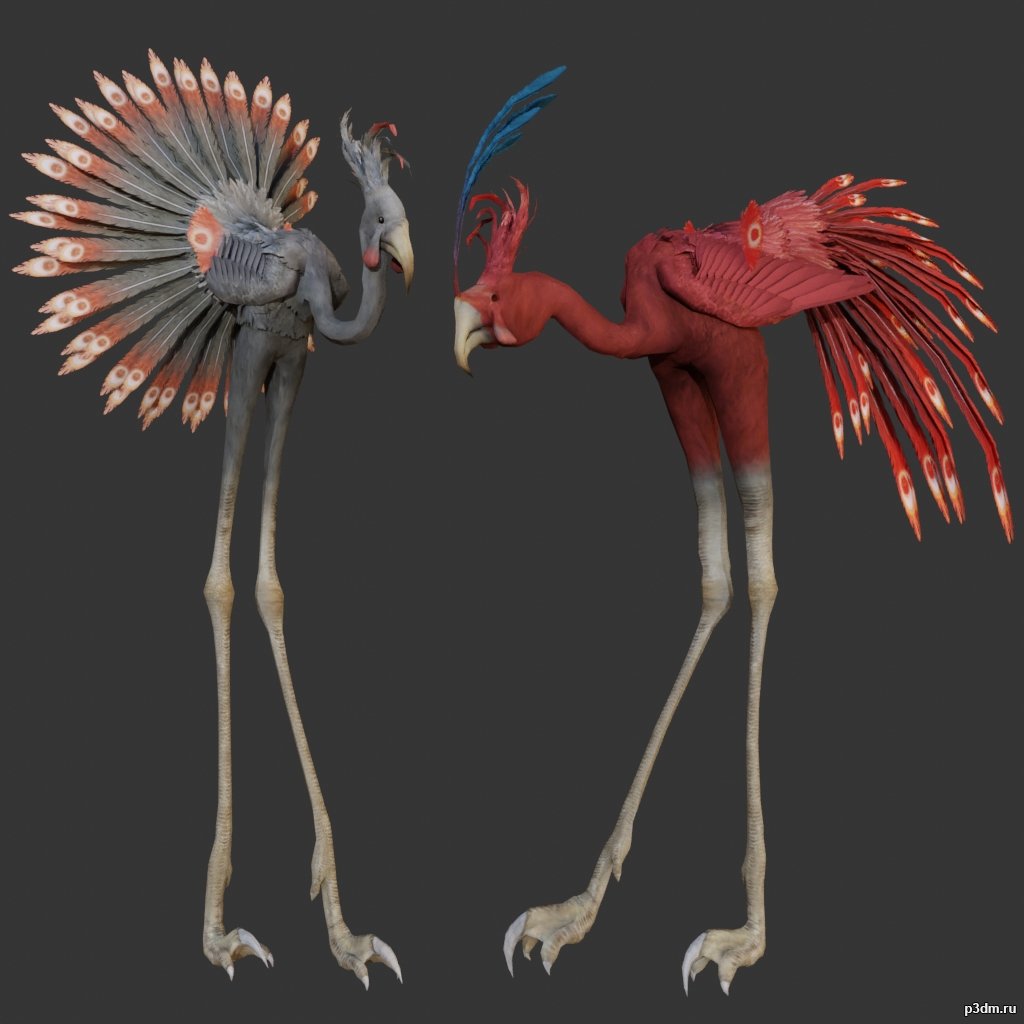
Flamingo 3D Model
using animations in Blender:1 – open model2 – import animation (in settings fbx import select Automatic Bone Orientations)3 – with the CTRL key held down Select the object you want to animate, then select the object from which you want to copy the animation, then go to Object > Link/Data Transfer > Link Animation Data
-
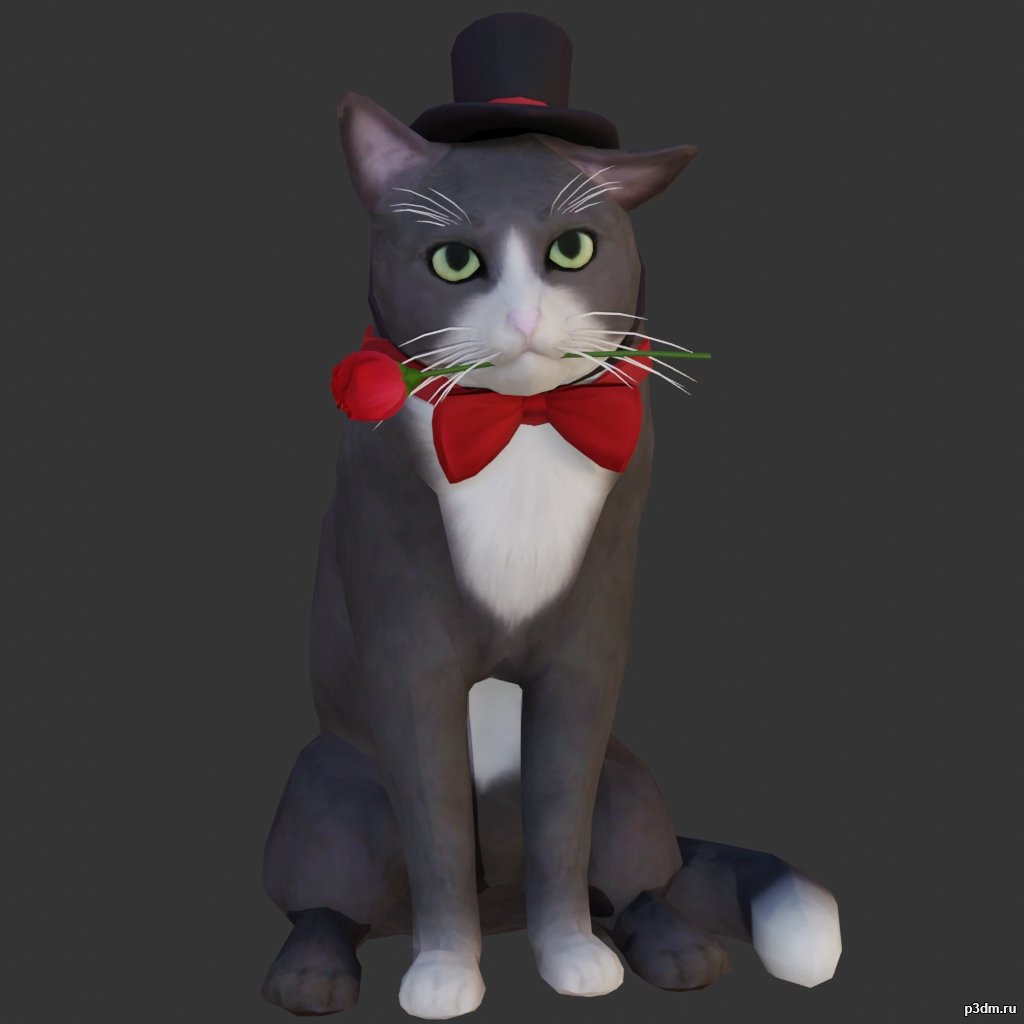
Romantic Cat 3D Model
Animations here –> MEOW 5mbusing animations in Blender:1 – open model2 – import animation (in settings fbx import select Automatic Bone Orientations)3 – with the CTRL key held down Select the object you want to animate, then select the object from which you want to copy the animation, then go to Object > Link/Data Transfer > Link Animation Data4 – correct some distortions
-
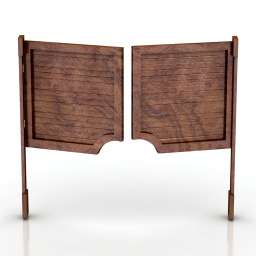
Doors 3D Model
Additional Info: Doors Swing N050722 – 3D model (*.gsm+*.obj+*.3ds) for interior 3d visualization.
-
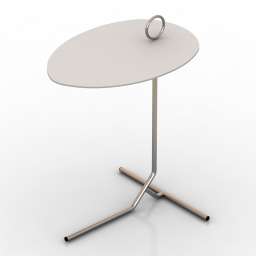
Table 3D Model
Additional Info: Table Asti Coffee Table By Jader Almeida N220622 – 3D model (*.gsm+*.obj+*.3ds) for interior 3d visualization.
-
Table 3D Model
Additional Info: Table Asti Coffee Table By Jader Almeida N220622 – 3D model (*.gsm+*.obj+*.3ds) for interior 3d visualization.
-
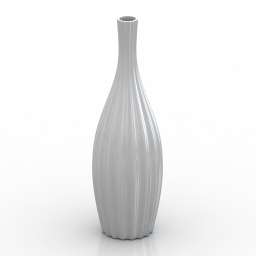
Vase 3D Model
Additional Info: Vase white – 3D model (*.gsm+*.obj+*.3ds) for interior 3d visualization.
-
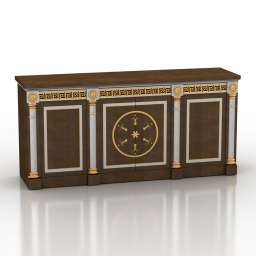
Locker 3D Model
Additional Info: Locker Epoca N130622 – 3D model (*.gsm+*.obj+*.3ds) for interior 3d visualization.
-
Locker 3D Model
Additional Info: Locker Epoca N130622 – 3D model (*.gsm+*.obj+*.3ds) for interior 3d visualization.
-
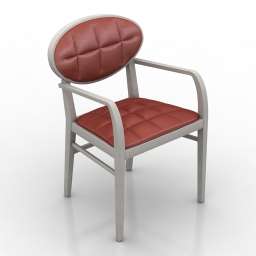
Chair 3D Model
Additional Info: Chair ZARINA CAPITONE SO1726 N130822 – 3D model (*.gsm+*.obj+*.3ds) for interior 3d visualization.
-
Chair 3D Model
Additional Info: Chair ZARINA CAPITONE SO1726 N130822 – 3D model (*.gsm+*.obj+*.3ds) for interior 3d visualization.